Introducing eWeLink Cast - A whole new way to control devices
What is eWeLink Cast?
- eWeLink Cast is a new feature of eWeLink, it is the control center of your smart home, allowing you to create multiple cast dashboards to meet different needs, what devices & scenes are displayed on each cast dashboard is up to you.
- You can access any of the cast dashboards you create through your web browser, we recommend using a tablet, and you can hang the tablet on the wall as your home center for long-term use.
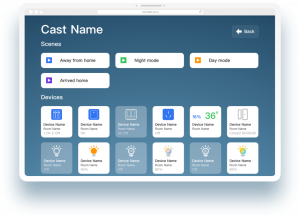
What can I do with eWeLink Cast?
- Create different dashboards for different purposes, like devices and scenes set for your parents or kids.
- Switch between dashboards with one eWeLink account to manage your smart home more efficiently.
- Lock a dashboard with a 4-digit PIN code, to avoid unexpected dashboard switching.
- Keep cast dashboard running on your unused tablet, turn it into a daily-used controller.
- Quickly view weather, device power consumption and other information on cast dashboard. (We're working on this)
How do I use the eWeLink Cast?
Join the Advanced Plan
Firstly, eWeLink Cast is an add-on for eWeLink web, that means you need to be in the Advanced Plan to use eWeLink web. If you're not, please visit https://vip.ewelink.cc/ to join the plan.
Create a cast dashboard
We suggest to create and configure your cast dashboards on a PC.
- Visit eWeLink web https://web.ewelink.cc/ and login with your eWeLink account.
- Go to eWeLink Cast menu and hit the add button to create your first cast dashboard.
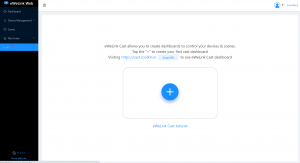
- Enter a name for your cast dashboard.
- Select the devices and scenes you want to add to this cast dashboard from left.
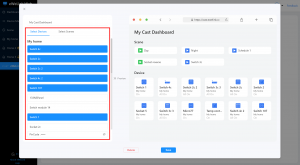
- Drag the icons in the preview area on the right to sort them.
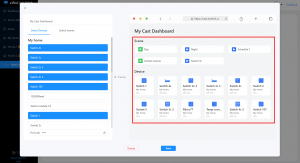
- PIN Code is optional, lock the dashboard by setting PIN code to prevent unwanted dashboards switching.
- Save your settings and the cast dashboard is created.
Visit the cast dashboard
Use a tablet for dashboard displaying is recommended.
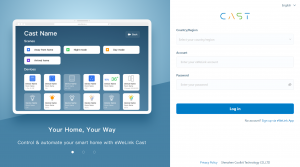
- Visit https://cast.ewelink.cc and login with your eWeLink account, all the cast dashboards you created are shown here.

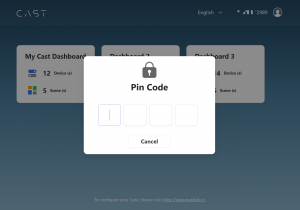
- Tap a dashboard and enter the Pin Code ( if there is ).
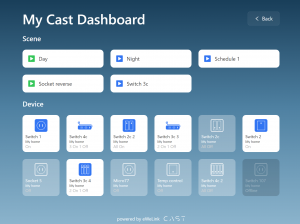
- Now you can run the manual scenes or control the devices here.
Cast on NSPanel Pro
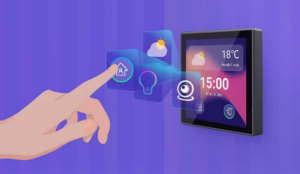
- eWeLink Cast (web) allows you to visit different cast dashboards on a large-screen tablet, while if you prefer to use Cast on a smaller screen which could be fixed into your house, SONOFF NSPanel Pro would be a good choice, it has eWeLink Cast as its foundation, the built-in Cast interface has been specially adapted to fit it.
- With NSPanel Pro, your smart home could be much more integrated, while with the web edition you can be more free to use larger Cast anywhere.
- Purchase NSPanel Pro here: https://itead.cc/product/sonoff-nspanel-pro-smart-home-control-panel/ref/1/
FAQ
Q1. What devices does eWeLink Cast support?
--Currently supports most of the Wi-Fi switches and some of the Zigbee switches, we're working on adding more devices.
Q2. Why does my device(s) not show up on the configuration page?
--Please refer to Q1, lights, sensors and other devices will be supported soon.
Q3. How many Cast dashboards can I create?
--Currently you can create up to 5 dashboards.
Q4. Can I open different dashboards on different tablets at the same time?
--Yes, one eWeLink account can log into to the Cast page (https://cast.ewelink.cc) on multiple tablets at the same time, allowing you to display different dashboards on each tablet.
(Note: the eWeLink web does not support multi-device login)
Q5. Do I need to join the Advanced Plan if I buy a NSPanel Pro (or other eWeLink Cast based hardware) ?
--No, you don't. The built-in Cast is part of a hardware product that you already pay for.
Q6. What size/resolution tablets should I use for displaying cast dashboard?
We've tested Cast on some resolution that work well:
1024 x 768 1280 x 800 2048 x 1536 2732 x 2048
Theoretically the Cast page will automatically adapt to varies size/resolution tablets (both iPad & Android pads), but there may be problems on some special resolution Android tablets, please try to adjust the resolution or font size in the system settings of tablet. If there are still problems, please make a simple post in our forum to describe your problem: https://forum.ewelink.cc/
Here are some 1280 x 800 Android tablets for your reference:
https://s.click.aliexpress.com/e/_DdfqFrZ
https://s.click.aliexpress.com/e/_DlE5Ft5
Comments
1 comment
Hi, tuya device suport?
Please sign in to leave a comment.