With the eWeLink app V5.24, more eligible devices now support iOS widgets, making it even easier to bring your most-used smart home controls to your home screen.
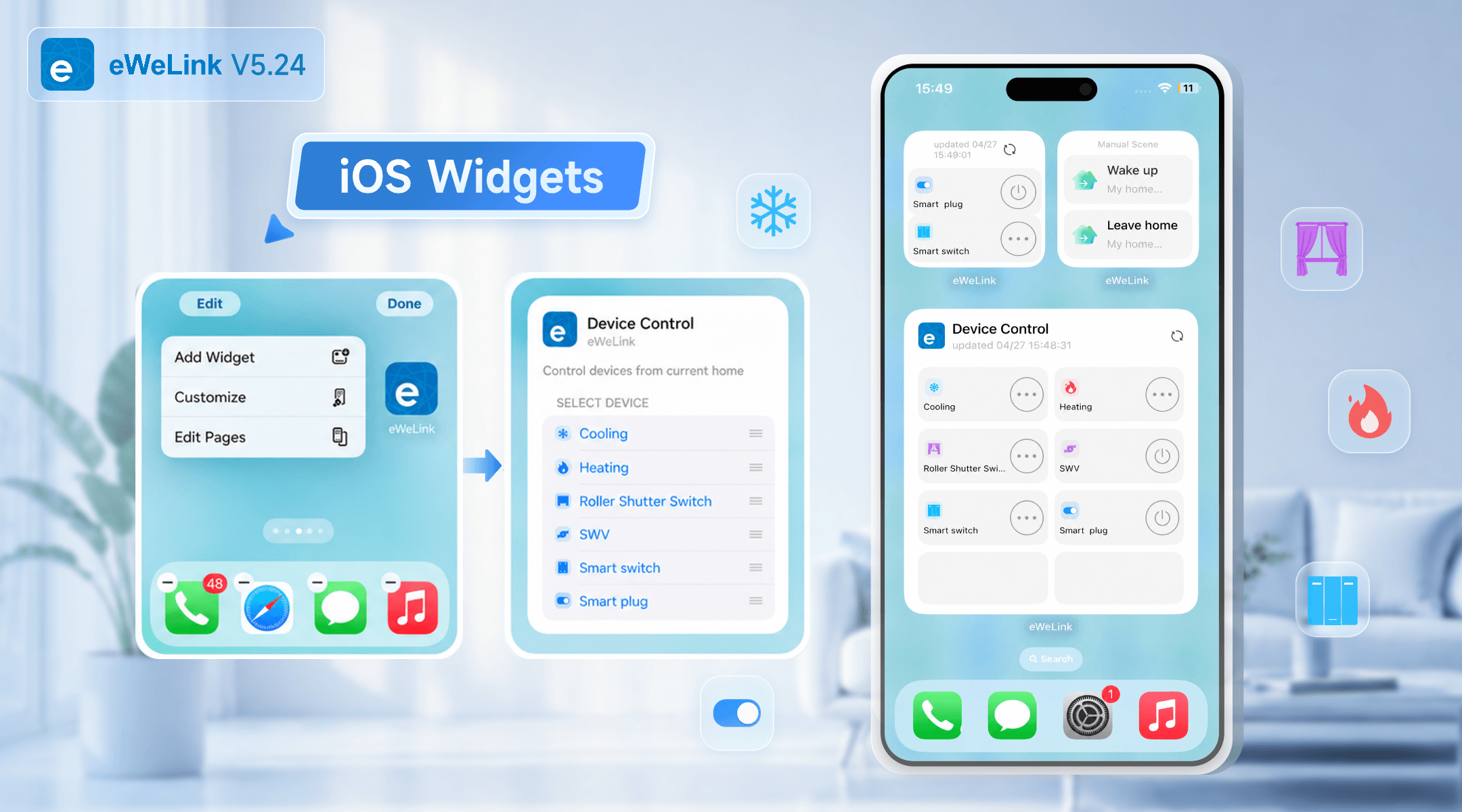
If you already use eWeLink widgets, this update gives you more flexibility in what you can place there. If you have not tried them yet, now is a great time to start. With just a glance and a tap, you can turn a manual scene on or off or control a device directly from your home screen—without opening the app and navigating through device pages.
This update expands support for devices that can be added to both of eWeLink’s iOS widget types:
- Manual Scene Widget—control your custom scenes, such as “Movie Time” or “Morning Mode,” right from your home screen
- Device Control Widget – turn individual devices on or off, check their status at a glance, or open the device control page in the app with a tap
Both widget types support 4×4, 4×2, and 2×2 sizes, so you can choose a layout that works best for your habits and your home screen.
Newly Supported Devices in V5.24
Device Type | Eligible Device Models (Examples) |
WiFi Smart Circuit Breaker | CK-BL602-DLQ-01 |
Smart Roller Shutter Switch | SONOFF SN-ESP32D0R2-RBS-01 |
Smart Plug with Electricity Consumption Monitoring | CK-BL602-SWP1-02 |
Matter Over WiFi Smart Switch | SONOFF BASIC-1GS |
eWeLink Thermo Plugin | / |
Matter Over WiFi Smart Plug | SONOFF BASIC-1GSP |
Zigbee Smart Water Valve | SONOFF SWV-NH SONOFF SWV-BSP |
Zigbee Smart Wall Switch_Single-Channel Switch _Support OTA (Supports both No Neutral and Neutral Wire) | SONOFF ZBM5-1C-120 |
Zigbee Smart Wall Switch_Dual-Channel Switch _Support OTA(Supports both No Neutral and Neutral Wire) | SONOFF ZBM5-2C-120 |
Zigbee Smart Wall Switch_Three-Channel Switch _Support OTA(Supports both No Neutral and Neutral Wire) | SONOFF ZBM5-3C-120 |
Zigbee Smart Plug | SONOFF SN-TLSR8656-S60-01 |
How to Add eWeLink Widgets on iPhone
Setting up eWeLink iOS widgets is simple:
- Long-press anywhere on your iPhone home screen to enter edit mode
- Tap Edit and choose Add Widget
- Search for eWeLink
- Select either a Manual Scene widget or a Device Control widget
- Choose your preferred size: 4×4, 4×2, or 2×2
- Add the widget to your home screen
- Configure the scenes or devices you want quick access to, then save your layout
Once set up, your selected scenes and devices will be available right from the home screen, making everyday control faster and more seamless.
With eWeLink App V5.24, you now have more options for what you can place on your home screen. It is a small upgrade that can make a big difference in daily use: fewer steps, faster access, and a smoother smart home experience overall.
What important features are we missing? We’d love to hear from you! Join our discussion here.
Comments
0 comments
Please sign in to leave a comment.