Keeping an eye on your home shouldn’t feel complicated. Whether you’re checking your front door, your pets, or just making sure everything’s in order, quick access matters.
Camera Live View brings real-time monitoring and instant device control together on a single screen. Imagine noticing unusual movement in your backyard at night. You need to trigger a siren or floodlight immediately, but exiting the live feed to find the right switch in a long device list costs you precious seconds. Camera Live View eliminates this “screen hopping,” keeping you in control when every second counts.
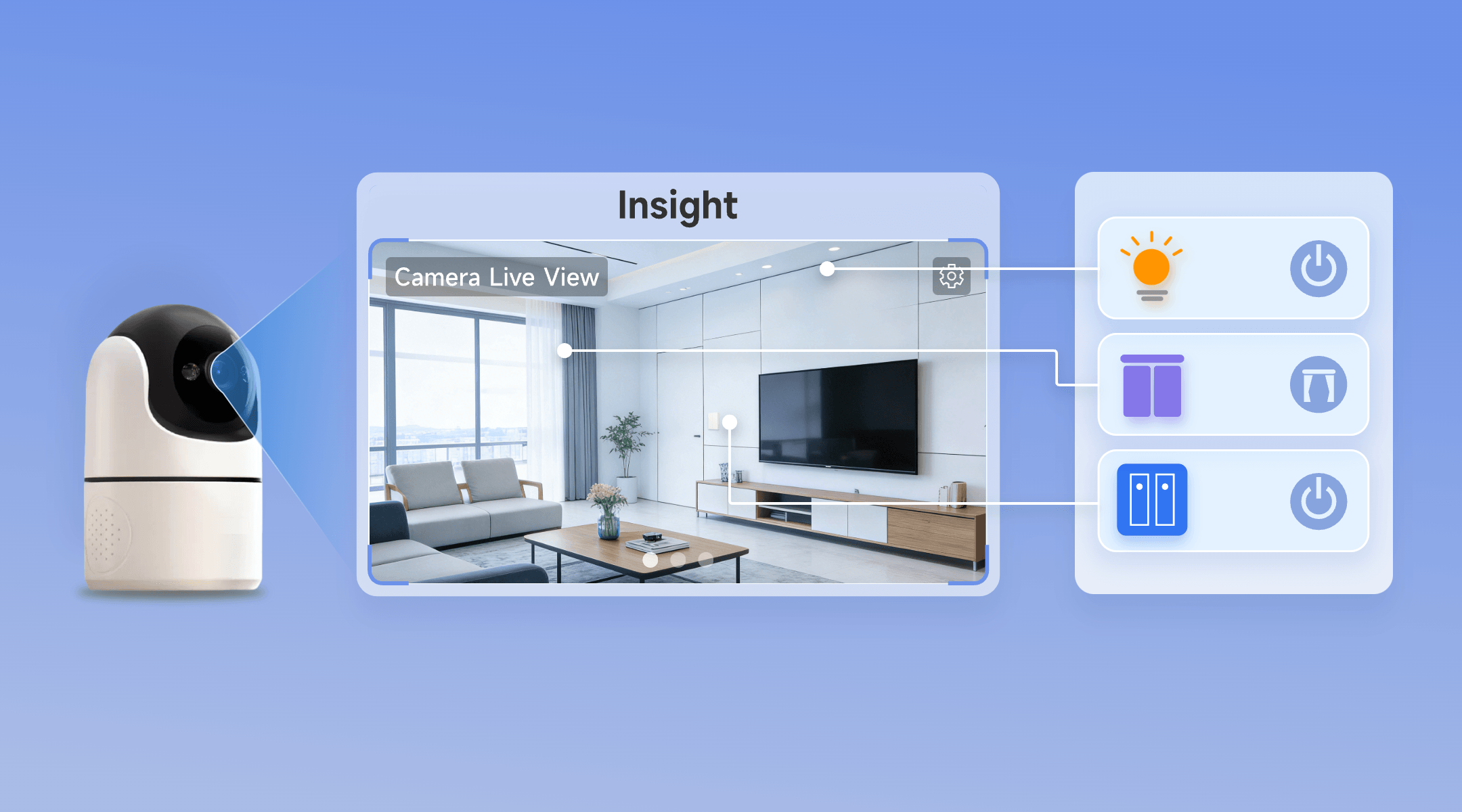
What is Camera Live View?
Available via the Insight tab, the “Camera Live View” feature combines real-time monitoring with active device control on a single, responsive screen:
- Instant Live Feeds: View your cameras directly in the Insight -> Camera Live View section. You can effortlessly swipe to view up to 3 different live feeds.
- Monitor & Control: Link and control your devices, such as outdoor lights, switches, or curtains, right below the live feed on one screen.
- Seamless Live Transitions: Your streams stay active in the background for instant, seamless transitions as you swipe.
It’s about making your smart home faster, more intuitive, and more efficient.
Get Started with Camera Live View
Before you start, ensure you have the following checked for a smooth setup:
- App Version: Update to eWeLink V5.14 or later.
- Compatibility: Have your eWeLink-supported cameras and controllable devices (switches, plugs, curtains, etc.) ready.
- Device Status: Ensure your cameras and controllable devices are online and responsive in the eWeLink app.
Compatible Device Reference
Camera Live View is compatible with a wide range of smart devices. Below are some of the supported categories and model examples:
Supported Cameras:
Cameras Types | Eligible Camera Models |
Wi-Fi IP Security Camera | SONOFF GK-200MP2-B SONOFF CAM-S2 SONOFF CAM-S2W |
Indoor Pan-tilt Security Camera | SONOFF CAM-PT2 |
Outdoor Security Camera | SONOFF CAM-B1P |
You can also use the following as cameras:
- eWeLink Camera App: Turn an idle Android phone into a functional security camera.
- eWeLink CAST: Turn your tablet into a live monitoring camera via the eWeLink CAST app.
Supported Controllable Devices
Device Type | Eligible Device Models (Examples) |
Single-Channel Plug | SONOFF BASIC_R3 SONOFF MINI SONOFF RF_R2 SONOFF S20R1 SONOFF S26 SONOFF S31 Lite SONOFF S55R1 SONOFF S30 AIB-xU1 CKCP-001 |
Single-Channel Plug_Support 2.4G eWeLink-Remote | SONOFF BASICR4 SONOFF MINI-D SONOFF MINIR3 SONOFF MINIR4 SONOFF S40 lite BL1-S04-01 CK-BL602-4SW-AY |
DIY Smart Switch | SONOFF Basic SONOFF RF SONOFF SV |
Single-Channel Switch | SONOFF RF R2 SONOFF T1 1C SONOFF Touch SONOFF TX1C |
Four-Channel Plug | SONOFF 4CH |
Power detection Plug | SONOFF IW100_US SONOFF IW101_US SONOFF Pow R2 SONOFF POWR3 SONOFF S31 GSA-D76 PSA-X67-GL |
Three-Channel Switch | SONOFF T1 3C SONOFF TX3C CKA-DM4-GL |
Dual-Channel Switch | SONOFF T1 2C SONOFF TX2C |
Thermostat | SONOFF S22_CN SONOFF TH10 SONOFF TH16 CK-BL602-TC-01 PSA-BHA-GL |
Dual-Channel Plug | SONOFF DUALR2 CKW04-2C |
Multi-Functional Dual-Channel Power Detection Switch | SONOFF DUALR3 E32-2SW-P0 |
Power Monitoring Plug Overload Alert – Multi-Channel Protocols | SONOFF S40 SONOFF S40TPA SONOFF S40TPB CK-BL602-SWP1-01 |
Single-Channel Plug-Multi-channel version | SONOFF Micro CKAM1 |
(POWCT) POWR3 – with LCD Screen | SONOFF POWCT SONOFF POWR316 SONOFF POWR320D SONOFF S60TPF SONOFF S60TPG SN-ESP32D0-POWR3-01 |
Temperature & Humidity Monitoring Switch_Support with History Feature | SONOFF TH16R3 SONOFF THR316 SONOFF THR320 CK-BL602-W302SE10-01 |
RGBCW LED Bulb Light, with 2.4G eWeLink-Remote | SONOFF B05-BL BL1-ALL-LED CK-BL602-5PWM-01 |
HMI Wall Switch | SONOFF NSPanel E32-MSW-NX |
Four-Channel Plug_Support 2.4G eWeLink-Remote | BL1-S04-01 CK-BL602-4SW-HS |
Zigbee Smart Switch | SONOFF S26R2ZBTPG |
Smart Plug with Power Monitoring | SONOFF Pow |
Curtain Motor | CK-BL602-DDCL-01 |
Display Camera Live View in Insight
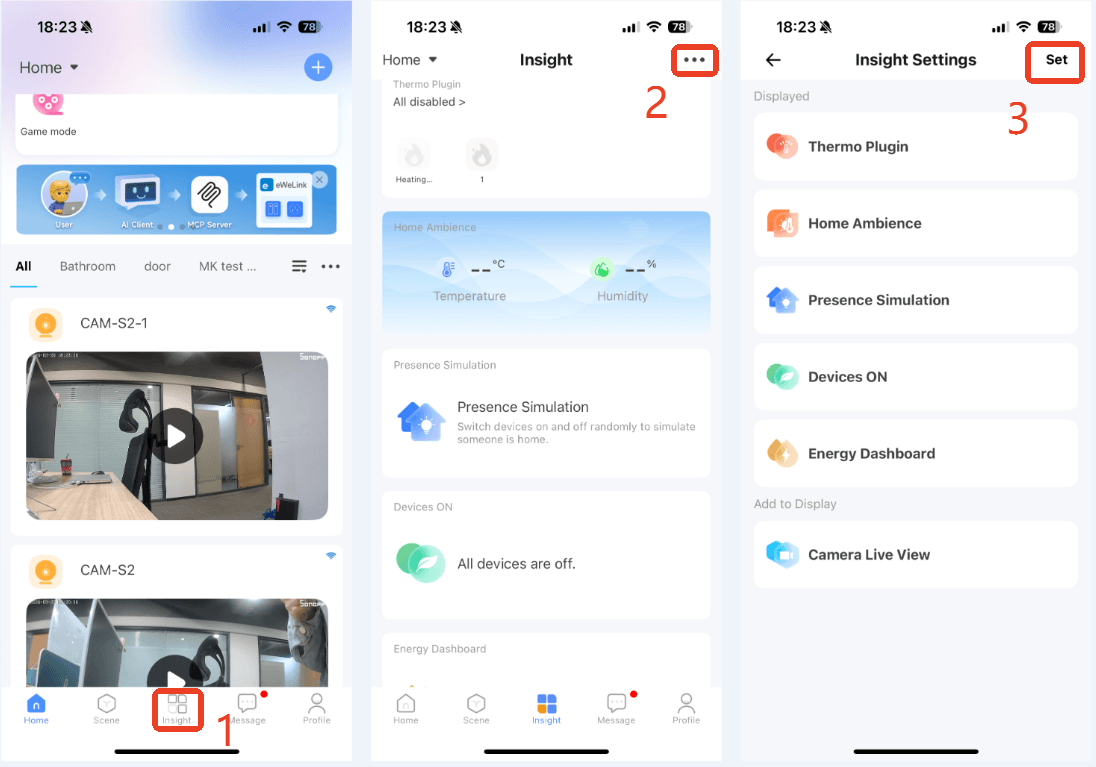
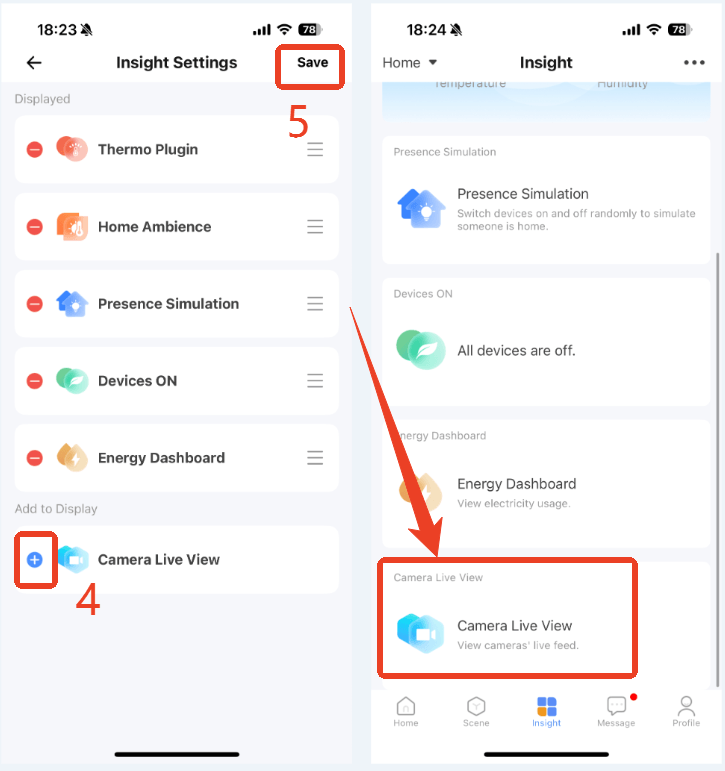
- Navigate to the Insight tab.
- Tap the “…” icon to access settings.
- On the Insight Settings screen, tap “Set” to select the sections.
- Find Camera Live View and add it to display on Insight.
- Tap “Save” to confirm and return to the Insight screen.
Now, the Camera Live View section is ready for further configuration within your Insight tab.
Add Your Camera Feeds
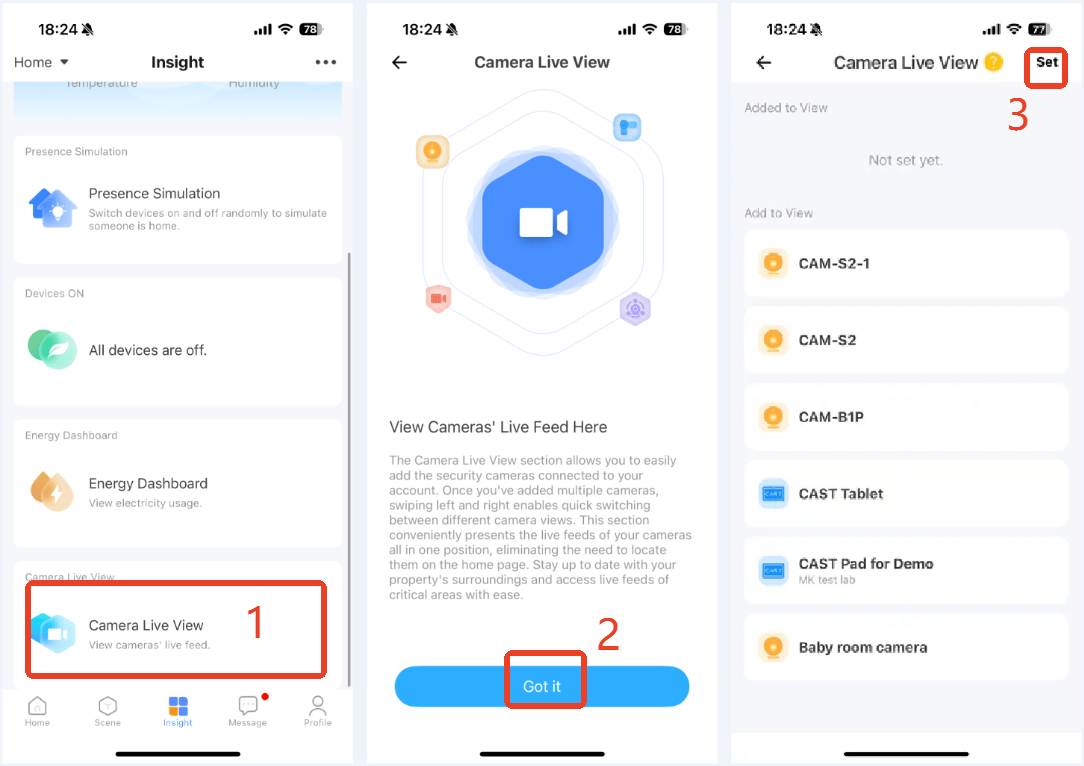
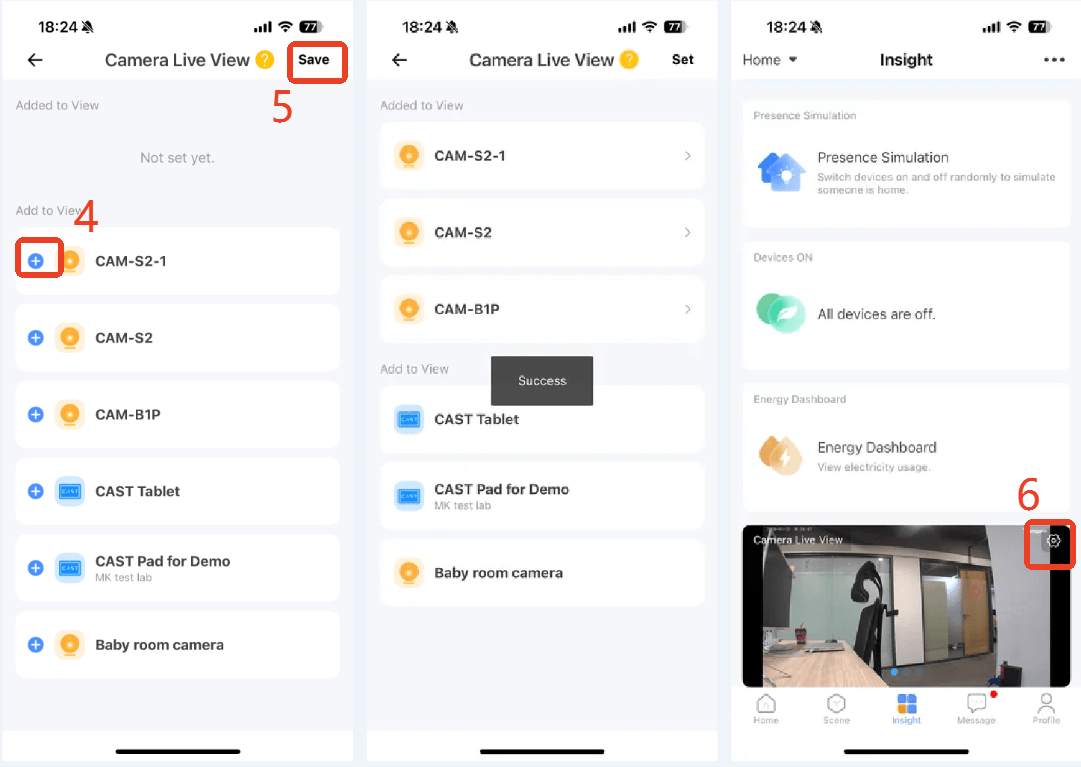
- Tap the Camera Live View section on the Insight screen.
- Tap “Got it” on the introduction page to access the selection list.
- Tap “Set” in the top-right corner to edit your view.
- Select the cameras you want to view.
- Tap “Save” to finish. Swipe to view all added camera live feeds on the Insight screen.
- For future changes, simply tap the Settings icon in the top-right of the Camera Live View section to add, remove, or reorder your cameras.
Link and Control Your Devices
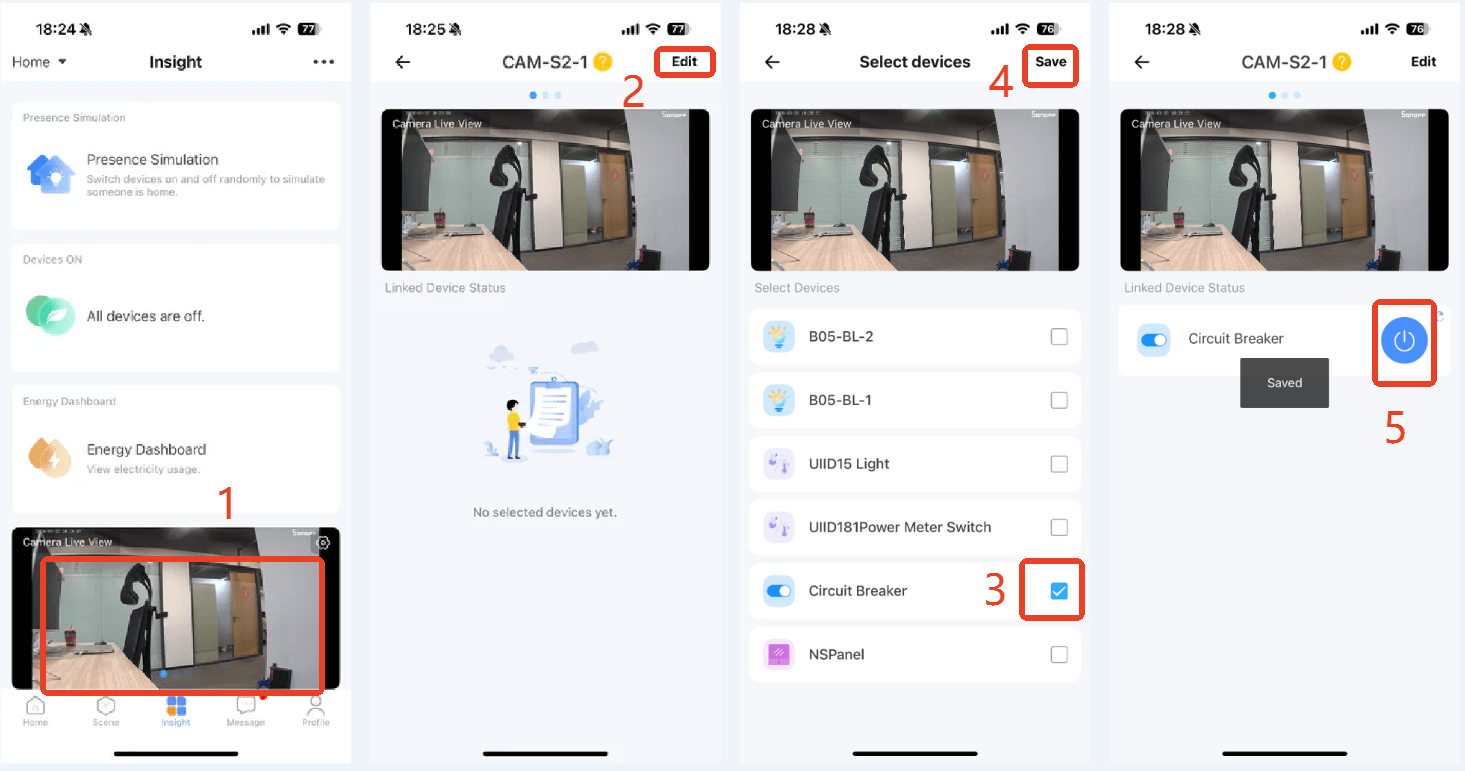
- Tap on any live feed of the cameras.
- On the camera monitoring page, tap “Edit” in the top-right corner to access the supported device list.
- Check the devices you want to link (e.g., lights or switches).
- Then, tap “Save” to complete the binding.
- Now, your linked devices will appear below the live feed. You can toggle them on/off while keeping a constant eye on the live stream.
Want to take your monitoring to the next level? Try eWeLink WEB to monitor up to 3 live feeds simultaneously on a single, larger screen for a more comprehensive view. (Requires an eWeLink Advanced/Prime Plan subscription)
You’re all set!
With Camera Live View, you can experience a smarter, safer home, making your daily monitoring and control simpler, more intuitive, and more efficient. Enjoy the effortless control right at your fingertips!
What important features are we missing? We’d love to hear from you! Join our discussion here.
Comments
0 comments
Please sign in to leave a comment.