1. Whenever there is a new firmware, you will see a message on top of the device screen which says "New firmware available. Open device settings to update it." If there is no such message there, it means your firmware is not ready to upgrade yet.
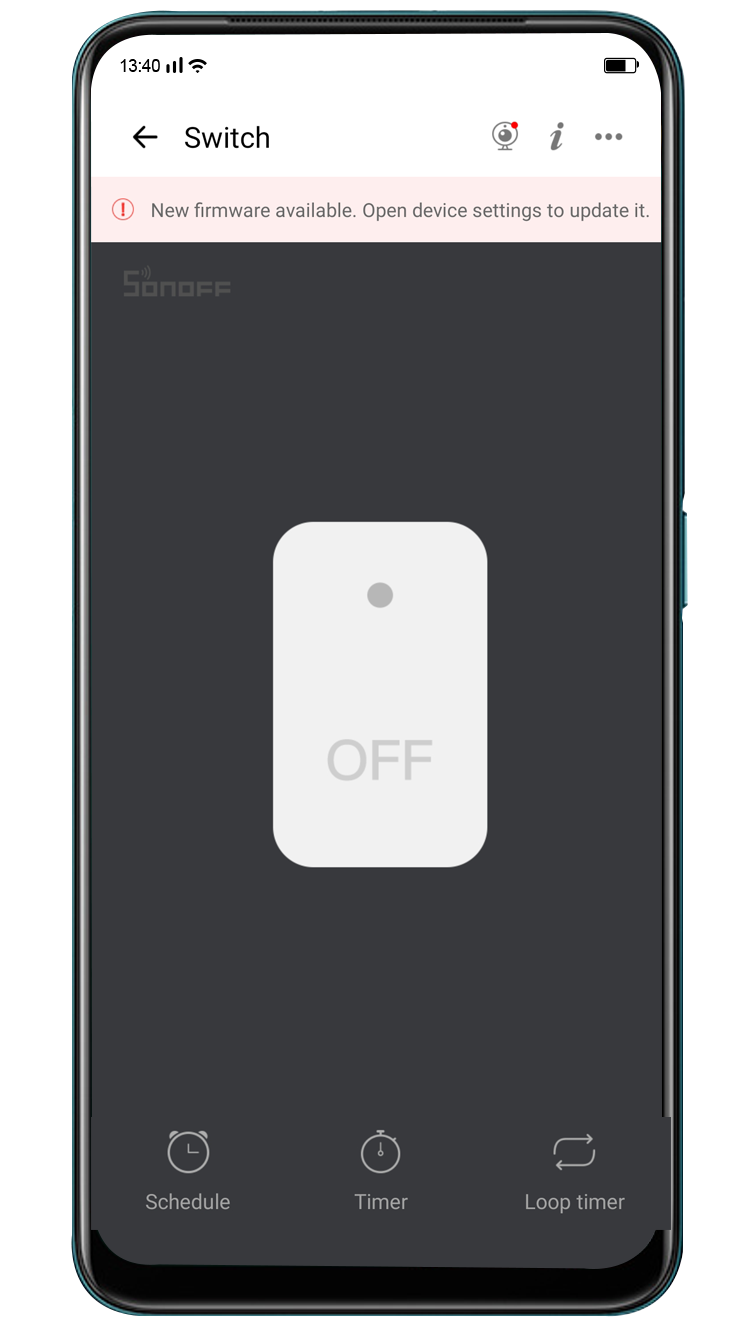
2. Then tap the three-dot icon on the top right of the app and select 'Setting'.
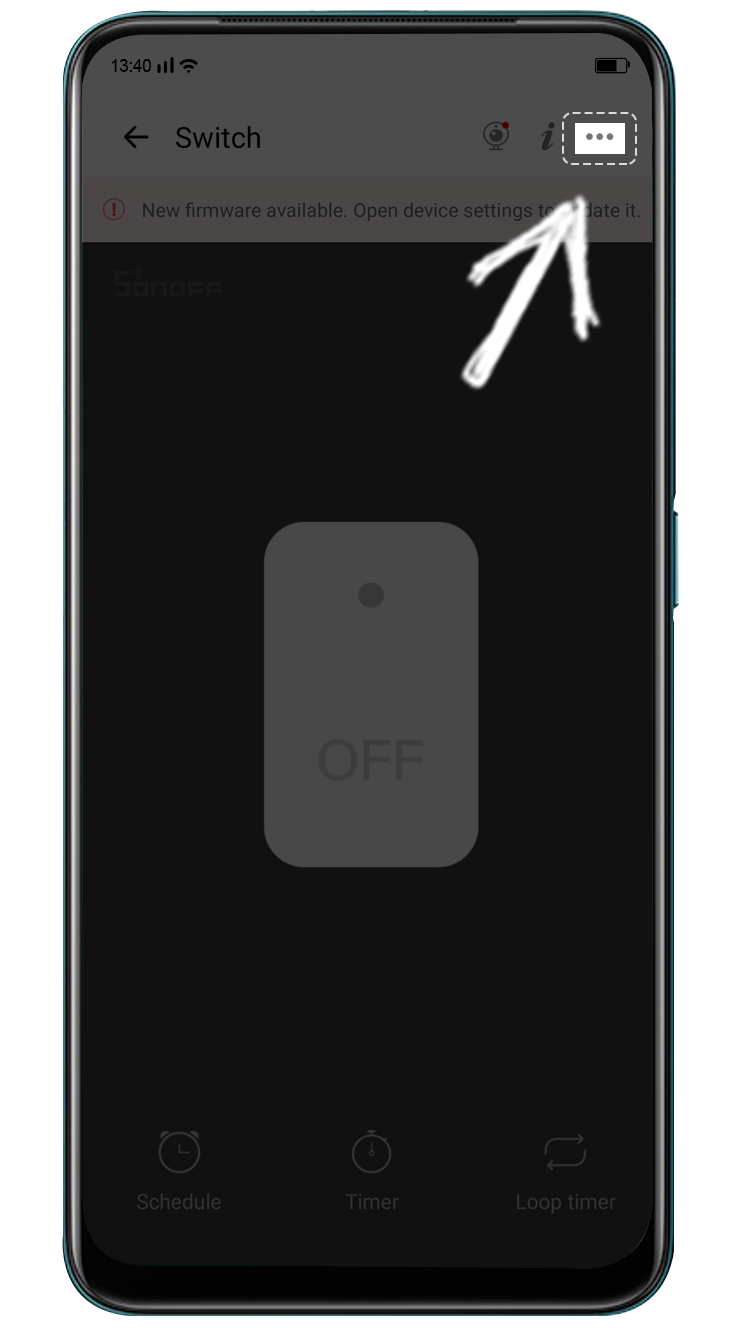
3. On the 'Device Settings' page, you will see the current firmware version and the latest version.
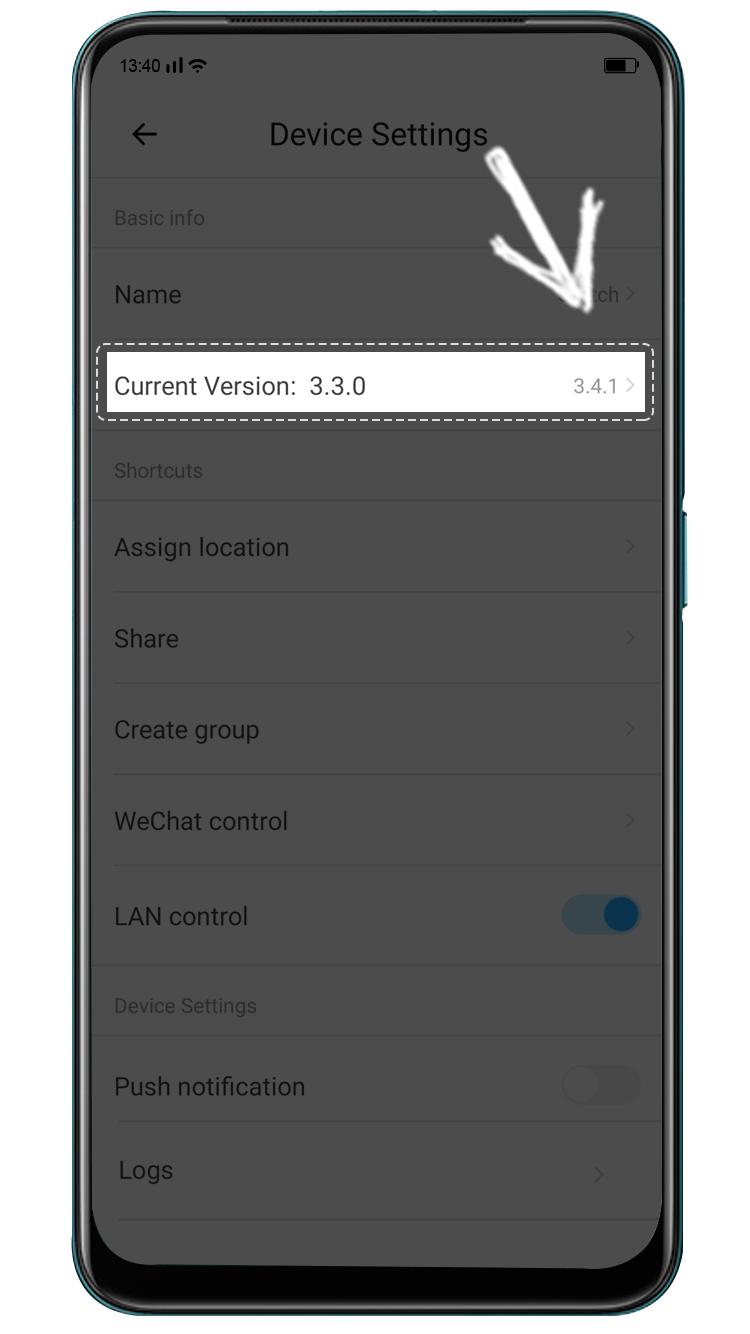
Tap the right arrow beside the latest version.
4. Tap "Update Now" and 'Confirm'. 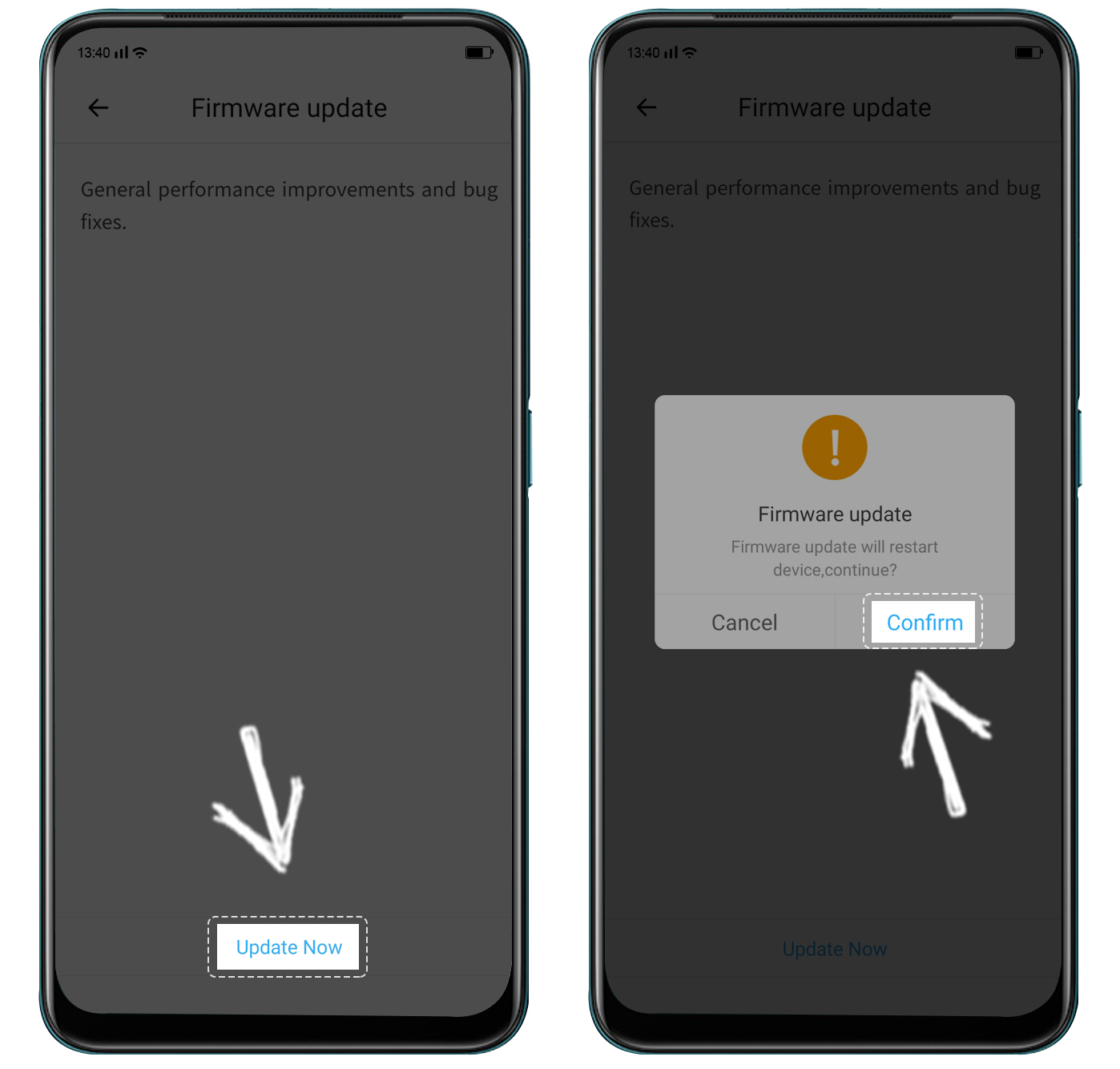
5. Go back to the device screen and you will see the firmware is being upgraded now. On the top of the page is the progress of the upgrade.
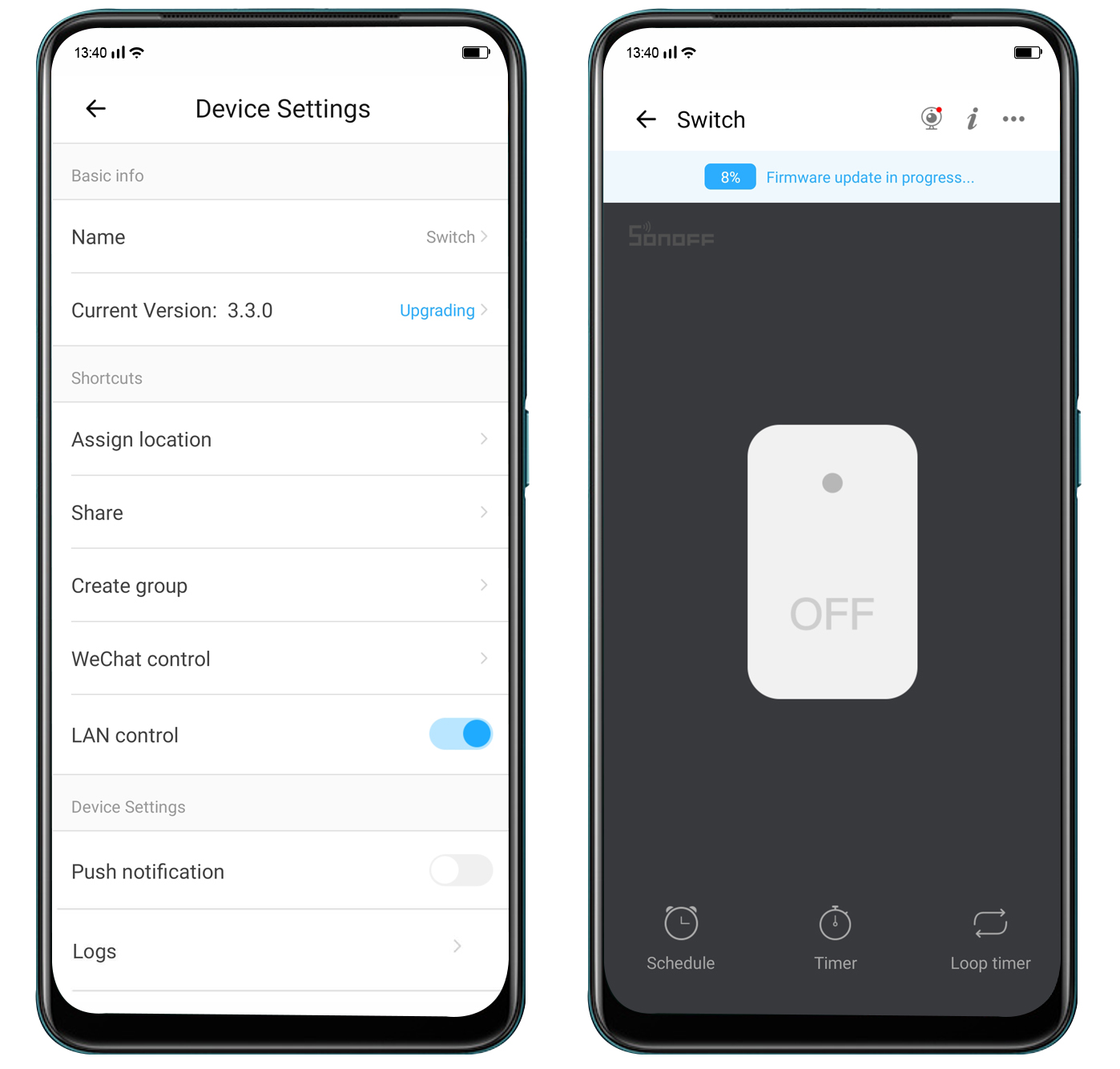
6. After the upgrade is completed, you will receive a prompt that says "Upgrade success". Then go back to device setting and you will see the firmware has been updated to the latest version.
If you have any other questions, feel free to reach out to us at support@ewelink.zendesk.com. To help us assist you more efficiently, please include as much detail as possible about the issue, along with any relevant screenshots.
Comments
0 comments
Please sign in to leave a comment.